ラベル ソフトウェア の投稿を表示しています。 すべての投稿を表示

2013年3月10日日曜日

Realistic programing on Igor Pro 1 Introduction

As far as I know, Igor Pro is one of the best analysis software for scientific and engineering researches.

You can analyze your data with very efficient and intuitive way by using only mouth and click.

However, if you could use programing on the Igor Pro, you can reach to much high level analysis while the programing on the Igor Pro is a bit tricky.


Here, I would like to write just a simple way how to make program on the Igor Pro.

The detail of the programing is referred to the manual of the Igor Pro.


First approach to write a programming on the Igor Pro is to make a "function".

"function" is a program having functionality and written in procedure, that can be made by 

   Windows -> New -> Procedure… 

MakeProcedure


The name of the procedure window is determined as
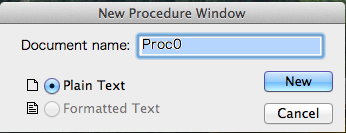
 DetermineProcedureName


As a result, you can see the window to write program on the Igor Pro.

ProcedureWindow


When you are new for the programing, you do not have to care about the initial notation of 

"#pragma rtGlobals=3// Use modern global access method and strict wave access."


The font for the procedure can be changed by 

   Procedure -> Text Size -> 

ChangeProcedureFont


The setting for the procedure can be saved by

   Procedure -> Capture Procedure Prefs...

CaptureProcedurePrefs


Now, you are ready to write a program.


The easiest function would be a function to do nothing, which is given by

   Function doNothing()

   End

DoNothing


The "Function" indicates this program is a function.

The following string of "doNothing" is the name of function.

You need put "()" after the name of the procedure.

Detail in the inside of "()" would be given somewhere else.

All function must be ended with "End".


You can call this function by writing the name of this function of "doNothing" in the command line as
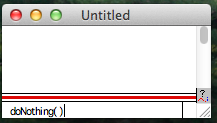
DoNothingOnCommandLine


This gives  

DoNothingDone

Note that this function gives nothing since we wrote nothing in the function.


The second example is the typical program for the all programing language of saying "Hello world".

This is given by

   Function sayHelloWorld()

      print "Hello world"

   end
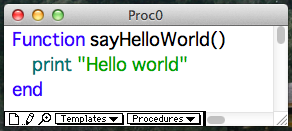
SayHelloWorld


This function gives

DoNothingHelloWorldOnCommandLine


The "print" command give the following string of "Hello world" in the command line as shown above.


I strongly recommend you to include only one functionality in one "function".

Much complicated functions, which has two or more functions, should be realized by combining "function"s.

The third example calls three command of "command 1", "command 2", and "command 3" as 

CallCommandsOf123


When I call "callAllCommandsOf123", this gives

ResultsCommands123


The great point of the programming on the Igor Pro is that you do not have to remember the command.

For example, the command to plot the data of dataY vs. dataX is achieved by the button of "To Clip" in New graph window of

GetCommand4Graph

This gives "Display dataY vs dataX" so we know the command to get a new graph is "Display".

The function to plot a new graph is

NewGraphFunction


When you want to perform Fourier transform of dataX, the command is achieved by the button of "To Clip" in the Fourier Transforms window of
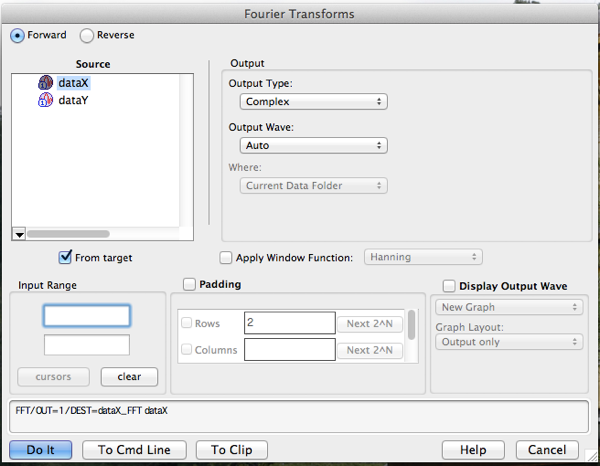
FFTwindow

This gives "FFT/OUT=1/DEST=dataX_FFT dataX".

Thus, the function for the FFT is 

FFTCommand

When the configuration for the analysis must be changed, like you calculate the magnitude for the Fourier transform and the result is plotted in a new graph, you can get the command by the button of "To Clip" in the window of

FFTCommand2

This gives command of "FFT/OUT=3/DEST=dataX_FFT dataX".


2011年11月18日金曜日

Igor Proの特徴

私がよく使う解析ソフトIgor Proのよい説明を見つけたのでとりあえずリンク。
http://ow.ly/7xDBy

Igor Pro の特徴として、比較て安い!というのも重要だと思います。
あと、サポートはばっちりですよ。
私はWavemetricsから直接購入したのですが、無料で何でも教えてくれます^^

2011年11月16日水曜日

usb-rgbをLionが入ったMacで使う。

usb-rgb(http://www.iodata.jp/product/av/ga/usb-rgb/)を、Lionが入ったMacで使う方法がようやくわかりました。

情報元
http://in.matrix.jp/blog2/?p=203

情報元にあるように、この製品の製造元であるdisplaylinkさんがβ版ではありますがドライバーを公開しています。
http://www.displaylink.com/support/mac_downloads.php


情報元ではurb-rgb/Dですが、アナログタイプのものでもOKです。
私はMacbook airで使っているんですが、airは画面が横長で上下が縮んでしまうことが欠点です。
これでようやく、画面を上下にずらす煩わしさから解放されます。

ま、Thunderbolt経由のアダプターを買えってことでしょうがorz

2011年2月23日水曜日

タスクスケジューラを用いた、Rubyプログラムの自動起動に関するTips

今、Rubyを用いたTwitterのBotをつくっています。

参考文献は、「誰でもできるTwitterBotの作り方」。

http://www.amazon.co.jp/%E8%AA%B0%E3%81%A7%E3%82%82%E3%81%A7%E3%81%8D%E3%82%8BTwitter-Bot%E3%81%AE%E4%BD%9C%E3%82%8A%E6%96%B9%E2%80%95%E4%BA%BA%E6%B0%97%E3%82%AD%E3%83%A3%E3%83%A9%E3%81%AB%E3%81%A4%E3%81%B6%E3%82%84%E3%81%8B%E3%81%9B%E3%82%8B-%E9%8F%91%E5%AE%B6%E7%B5%8C%E6%B8%88%E7%A0%94%E7%A9%B6%E6%89%80/dp/486146188X

表紙はギョッ、アマゾンの書評もダメダメですが、私にとっては満足な感じでした。

Rubyのプログラムはなかなか苦労しましたが、本のとおりすれば恐らくできます。
ただタスクスケジューラのことがほとんど説明ない!
特に、Vista以降のOSに関しては全く説明がありません。
で、一つ苦労したところがあったので忘備録。

「操作」のタブの「設定」で、呼び出すプログラムを設定するところまではいけるとおもうんですが、その下にある「開始(オプション)」も設定しなければなりません!
何を書くかというと、呼び出すプログラムがあるフォルダーをひらいて、そのアドレスをコピペします。
例えば
C:\Users\home\***(呼び出すプログラムがあるフォルダーのもの)
とか。
これを、「開始(オプション)」の右にある欄に入れてください。

ちなみに私が参照したホームページは、ここ。
http://tobysoft.net/wiki/index.php?Windows%2FVista%2F%A5%BF%A5%B9%A5%AF%A5%B9%A5%B1%A5%B8%A5%E5%A1%BC%A5%E9%A1%BC%A4%C7%A5%D0%A5%C3%A5%C1%A5%D5%A5%A1%A5%A4%A5%EB%A4%F2%BC%C2%B9%D4%A4%B9%A4%EB%CA%FD%CB%A1

Good Luck ^^

2010年9月27日月曜日

音ミエール2

先日、和音を可視化するソフトウェアの音ミエールというファイルを公開しましたが、今回は調子にのって、お持ちの音楽ファイルを解析して可視化するソフトを作ってみました。


今回は音楽ファイルをIgor Proに取り込まなきゃいけないので少し面倒なプロセスが必要ですが、もしよかったら、使ってみてください^^


音ミエール2の使い方


1. Igor Proの評価版をダウンロードし、インストールします。


2. 以下に示す二つのフォルダーを開きます。
C:\Program Files\WaveMetrics\Igor Pro Folder\More Extensions\File Loaders


3. このフォルダー内にある「SndLoadSaveWave」、「SndLoadSaveWaveQT.dll」、「SndLoadSaveWave Help」のファイルのショートカットを作成する。


4. これら3つのファイルのショートカットを以下のフォルダーにコピーします。
C:\Program Files\WaveMetrics\Igor Pro Folder\Igor Extensions


5. 下記のリンクから音ミエール2をダウンロードして、ダブルクリックします。
https://files.me.com/hassy1977/cg3315


6. 解析したい音楽データがあるフォルダーを開きます。


7. 音ミエール2の左上の表にあるフォルダーの欄に、このフォルダーのアドレスをコピーします。


8. 解析したい音楽データのファイルの名前を、左上の表にあるファイルの欄にコピーします。ファイル名の最後に、「.mp3」や「.wav」などのファイル形式を付け加えてください。


9. 音ミエール2の真ん中の上方にある「Get Data」ボタンを押してください。


10. 「Get Data」ボタンの隣にある「Start!」ボタンを押してください。


以上で、主な使い方はおしまいです。


感想や質問がありましたら、コメント欄にお願いいたしますm(_ _)m

2010年9月18日土曜日

音ミエール


音って聞こえますが、見えませんよね。
これあたりまえ。

でも最近、私が好きなベロベロ音楽理論というustreamの番組で和音がテーマになっていたので、和音が可視化できないかと思ってこんなプログラムを作ってみました。


もし興味があれば、私のプログラムが使われたこの番組を見てください。
http://www.ustream.tv/recorded/9123229
そして、興味が増してきたら使ってみてください。

使い方
1. Igor Proというソフトウェアを下記のホームページからダウンロードして、インストールして下さい。
http://www.hulinks.co.jp/software/igor/download.html
Igor Proは無料の評価版があって、一ヶ月を過ぎるとセーブができなくなりますがプログラムを利用するには問題ないはずです。

2. 以下のリンクから、私のプログラムをダウンロードして下さい。
https://files.me.com/hassy1977/341ipz

3. このプログラムを起動してみて下さい。

あとは見てわかると思います。
もし使い方がわからないときは、コメント欄に質問を書いて頂けると幸いですm(_ _)m