ラベル IPhone の投稿を表示しています。 すべての投稿を表示

2012年5月6日日曜日

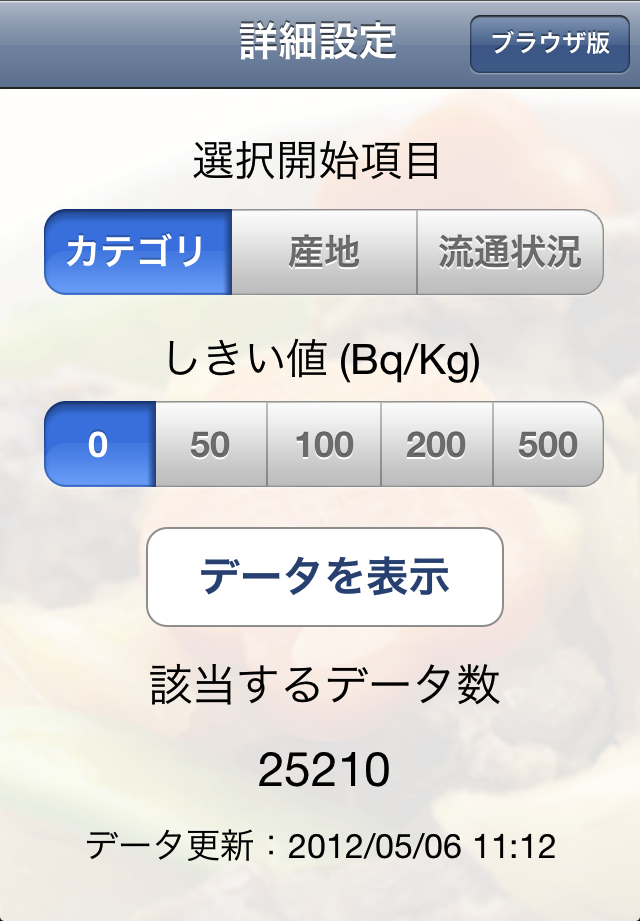
新しいiPhoneアプリ、「ベクレル表」をリリースします!

残念ながら、多くの方が食品の放射能汚染を心配しながらお暮らしのことと思います。今、とても重要なのは、できるだけ正しい情報を得て何が安全なのかを認識することだと考えています。
そこで私は、三重大学の奥村先生が厚生労働省が公開したデータをまとめたものをダウンロードして解析し、効率的に表示する新しいアプリを作成しました!

このアプリを通して得た情報から、日本の食品の放射能量はほぼ全て問題ないということが確認できるかと思います。多くの人が安心感を得られるように願っております。


2011年7月20日水曜日

新しい写真添付機能付きのメールアプリをリリースします!

名前はシンプルに「簡単写真手紙」!

昨今、社会の高齢化、そして高齢者の孤独化が問題になっています。
私はもっと国全体がこの問題に眼を向けるべきと思っているのですが、若い人はとても忙しいですよね。
そこで私は、お年寄りの間の交流を促進したいと考えてこのアプリを作成しました。
 詳細は、アプリが登録されてからアップします。
もしよかったら購入してみてください^^

2011年3月29日火曜日

横画面のアプリにおける、iAdの設定法

iAdと格闘して数ヶ月、ようやく安定的なプログラムが書けるようになりました。
概要を示します。
ただし、横画面用のプログラムですので、あしからず。

まず、ファイル名に .h をつける定義ファイル中で
#import <iAd/iAd.h>を加えて
@interface *** : UIViewController <ADBannerViewDelegate>
としてデリゲートを取り込んだ後、
    ADBannerView *adView;
    BOOL bannerIsVisible;
    BOOL InfomationIsVisible;
を定義します。

次に、ファイル名に .m を付ける実行ファイルで次のプログラムを記述します。
- (void)viewDidLoad 中に
    bannerIsVisible = NO;
    adView = [[ADBannerView alloc] initWithFrame:CGRectZero];
    adView.requiredContentSizeIdentifiers = [NSSet setWithObject:ADBannerContentSizeIdentifierLandscape];
    adView.currentContentSizeIdentifier = ADBannerContentSizeIdentifierLandscape;
    adView.delegate = self;
    adView.frame = CGRectOffset(adView.frame,0,300);
    [self.view addSubview:adView];
    InfoView.alpha = 0;
を記述し、次のコードも記述します。

- (void)bannerViewDidLoadAd:(ADBannerView *)banner {
   
    if (!bannerIsVisible) {
        [UIView beginAnimations:nil context:nil];
        [UIView setAnimationDuration:1.0];
        adView.frame = CGRectOffset(self.view.frame, 0, 268);
        [UIView commitAnimations];
        bannerIsVisible = YES;
    }
   
    NSLog(@"bannerViewDidLoadAd: is called");
   
}

-(void)bannerView:(ADBannerView *)banner didFailToReceiveAdWithError:(NSError *)error{
    if (bannerIsVisible) {
        [UIView beginAnimations:@"animateAdBannerOff" context:NULL];
        [UIView setAnimationDuration:1.0];
        adView.frame = CGRectOffset(self.view.frame, 0, 300);
        [UIView commitAnimations];
        bannerIsVisible = NO;       
        NSLog(@"didFailToReceiveAdWithError: is called");
    }
}
2011年3月28日月曜日

Xcode4でのiPhoneアプリの公開方法に関するリンク

今日、Xcode4を導入してあまりの変貌ぶりに驚いてしまいましたが、特にわからないのがアプリの公開方法。
有用なホームページがあったので、自分自身へのリマインダーとしてリンクを張っております。

http://arukansoft.net/?p=282

2011年3月6日日曜日

画面スライドによるパラメーター制御のコード

iPhoneの画面をスライドしてパラメーターを制御するときのコードの忘備録です。

-(IBAction)touchHand:(UIButton *)sender forEvent:(UIEvent *)event{

     NSSet *touches = [event touchesForView:sender];
     UITouch *touch = [touches anyObject];
     CGPoint touchPoint = [touch locationInView:sender];   

     IniPosY = touchPoint.y;

}

2011年2月22日火曜日

Sound Visualizer is published!

I published a new iPhone application ^^
The application can be downloaded here!


When you study the theory of music, you will learn that C and F makes beautiful harmony, while C and F# makes disharmony.
For the better understanding of these facts, This application will visualize sounds.

In this application, the sounds is displayed in a graph having transverse and longitudinal axis, representing time and amplitude, respectively.
You can easily see that the graph of harmony is very clear, but the graph of disharmony is messy.

Do you know there are mainly two kinds of intonations?
One is just intonation and another is equal intonation.
Just intonation is a perfect harmony, though it is difficult to modulate.
Equal intonation is different from just intonation, and thus the harmony is not ideal, though we can modulate the sounds.
This application display the change in just and equal intonations in a graph, and also make heave of just and equal intonations.

Example

How to hear and see the harmony of C and F
1. Launch the application.
2. Touch "start button".
3. Touch "II" button.
4. Touch keys of "C" and "F" (You can hear the harmony of C and F).
5. Touch "Graph" button (You can see the graph of the harmony of C and F).
6. Touch "Just" and "Equal" button to see and hear the difference in these two intonations.
7. Change the scale of transverse axis by touching "Zoom in" and "Zoom out" button to expand and shrink the time scale of the graph.
8. Touch "Info." button to show the difference of frequencies of just and equal intonations.

I hope this application will help your better understanding of sound and music.

2011年2月20日日曜日

iPhoneアプリの多言語対応

世界に出せるiPhoneアプリ、英語など多言語対応すると可能性は大きく広がります。
というわけで、多言語対応は必須なことは言うまでもありません。

多言語対応は既に多くのホームページで紹介されていますがそのほとんどはnib、InfoPlist.stringsとLocalizable.stringsというファイルを作って、多言語対応をします。
ですが日本語と英語の文法は大きく異なるので、少し複雑になるとこの方法では対応できなくなってしまいます。
そこで、以下の方法を考えました。
よろしかったらご参照下さい。

まず日本語用の Localizable.stringsに
"言語" = "日本語";
と記述します。
次に実行ファイル中に

    NSString* Comp = NSLocalizedString(@"言語",@"");
    NSComparisonResult result = [Comp compare:@"日本語"];
   
    switch (result) {
        case NSOrderedSame:
・・・
            break;
        default:
・・・
            break;
    }

と記述します。
すると日本語のときには、Localizable.stringsにより@"言語"が"日本語"になって、
    NSComparisonResult result = [Comp compare:@"日本語"];
の条件文が
result = NSOrderedSame
となります。
結果下のスイッチ文が有効になって、自由に記述できるようになります。

いかがでしょうか。
お役に立てれば光栄です。

2011年2月19日土曜日

Prime calculator

http://itunes.apple.com/jp/app/id418727618?mt=8


My iPhone tool makes your iPhone, iPod touch and iPad a calculator of Prime numbers. 
By just touching a button, a million of Prime number is calculated! 
This tool can be downloaded here. 
It's FREE :)


If you are interested in Prime numbers, please download and enjoy the deep meaning of Prime!


2011年2月13日日曜日

初心者のためのiAd設定法

私もiPhoneプログラムの初心者なので間違っていることがあれば教えていただきたいのですが、これまでの悪戦苦闘でわかったことをまとめています。

今日は、iAdの設定に挑戦しました。

私は、下記のブログを参考にしました。
http://ameblo.jp/micro-garden/entry-10580109697.html
このホームページによるとiAdの設定には

① iAdのフレームワークを導入。
② ヘッダーファイルに<iAd.iAd.h>を入れる。
③ ヘッダーファイルにADBannerViewDelegateのデリゲートを加える。
④ ソースコードファイルに
 ADBannerView *adView = [[ADBannerView alloc] initWithFrame:CGRectZero];
 adView.currentContentSizeIdentifier = ADBannerContentSizeIdentifier320x50;
 [self.view addSubview:adView];


とあります。
でも、これを入れてもいっこうに広告が出ない。
これはもしかしたら私がInterface Builderを使っているからかと思って、④の代わりにInterface Builderを使う方法を探してみました。
ということで、Interface Builderを見てみると、なんとiAdボタンがあるではないですか。
早速iAdボタンを貼りつけてから横画面設定にし直して、ヘッダーファイルに
    IBOutlet ADBannerView *adView;
と入れてから、リンクを貼るとなんとか広告が出るようになりました。


本当にこれだけでよいのかなーという気がしますが、とりあえずこれで進めてみます。


ちなみに、この過程で覚えたことをついでに付記しておきます。
 
ADBannerContentSizeIdentifier320x50とありますが、これはiOS4.0とiOS4.1で有効で、iOS4.2では注意文が出てきてしまいます。
iOS4.2からは縦画面ではADBannerContentSizeIdentifierPortrait、横画面ではADBannerContentSizeIdentifierLandscapeとなります。
つまり上のコードは縦画面では、
 ADBannerView *adView = [[ADBannerView alloc] initWithFrame:CGRectZero];
 adView.currentContentSizeIdentifier =
ADBannerContentSizeIdentifierPortrait;
 [self.view addSubview:adView];

横画面では
 ADBannerView *adView = [[ADBannerView alloc] initWithFrame:CGRectZero];
 adView.currentContentSizeIdentifier =
ADBannerContentSizeIdentifierLandscape;
 [self.view addSubview:adView];

となりますね。


どこか間違えているところがありましたら教えて頂けると幸いですー。

2011年2月5日土曜日

私、初のiPhoneアプリを申請しました!

ついに、私が始めて作ったiPhoneアプリ「素数計算機」を申請しました^^
これを使ってどうのこうのという訳ではないですが、ここから派生する進化がとても楽しみです。
公開になったら、ぜひみなさんもダウンロードしてみてくださいね。
当然、無料です!

追記(2月15日) ダウンロードは、こちらから^^
http://itunes.apple.com/jp/app/id418727618?mt=8#ls=1


ちなみに、英語にも対応しています^^

2011年1月17日月曜日

iPhoneアプリ作成におけるiPhoneの登録方法について

いよいよ、自分が作ったアプリをiPhoneの実機で試してみます。
でも、登録方法がなかなかむずい><
恐らくこれからする人も大変だと思いますので、私が問題になったところを書いときます。

登録方法はこのホームページでとっても詳しく説明してあります^^
どうぞご参照下さい。
http://gihyo.jp/dev/serial/01/iphone/0009

まず、最初に登録ができなかったんですが、アップルに連絡したらなぜかできるようになりました。
で、質問する用のホームページが英語で書かれていたんでがんばって英語で質問したら、普通に日本語で帰ってきました。
というわけでなにかわからないことがあったら、空気を読まずに日本語でメールが楽でいいかもしれませんよ。

次に、登録が終わってiPhoneを繋げたら、
「開発をサポートできませんでした。」
と無常の表示。で、調べてみると次のホームページに対処法がのってました。
http://miotree.blog26.fc2.com/blog-entry-19.html

答えは簡単で、iPhoneの再起動。
ただ私のときはそれでもだめで、
Xcode の再起動で治りました!
原因は恐らくXcodeのバージョンだと思いますが、恐らく多くの人がひっかかると思います。

次に、下のホームページに
http://gihyo.jp/dev/serial/01/iphone/0009?page=2
iPhone Dev Centerの右側にある「Program Portal」をクリックします。
とありますが、これは恐らく新しくなって、
iOS Dev Centerの右側にある「iOS Provisioning Portal」をクリックします。
ですね。

あとは私は大丈夫でした。
今、自作アプリを試していますが、おおーーーって感じです。

では、みなさまもお楽しみをー^^

NSLogの使い方

とても重要なNSLogの使い方例です。
情報元はここ
http://www.oomori.com/cocoafw/Foundation/NSString/stringWithFormat.html

NSLog([NSString stringWithFormat:@"%@ %.2f %d¥n",@"string",11.234,10]);

2011年1月16日日曜日

横画面

iPhoneプログラムのTipsです。
画面を横にするための方法の忘備録です。

出処はここですよ。
 http://www.blogger.com/post-create.g?blogID=6808403252428208396

まず、info.plistに「UIInterfaceOrientation = UIInterfaceOrientationLandscapeRight」を追加する。

次に UIApplicationDelegate.m の applicationDidFinishLaunchingメソッドで
[[UIApplication sharedApplication] setStatusBarOrientation:UIInterfaceOrientationLandscapeRight];
を呼び出す。具体的には
- (BOOL)application:(UIApplication *)application didFinishLaunchingWithOptions:(NSDictionary *)launchOptions {   
    [[UIApplication sharedApplication] setStatusBarOrientation:UIInterfaceOrientationLandscapeRight];
    [window addSubview:viewController.view];
    [window makeKeyAndVisible];
    return YES;
}


とする。

UIViewController.m の shouldAutorotateToInterfaceOrientation メソッドをこんな感じにする。

- (BOOL)shouldAutorotateToInterfaceOrientation:(UIInterfaceOrientation)interfaceOrientation
{
    return (interfaceOrientation == UIInterfaceOrientationLandscapeRight);
}
最初はこの項目は無視せよってなっているんで注意。